Android, iOS, and macOS apps: Edit App Settings
The Apps library allows you to view app details, filter subsets of apps, edit settings on edit-enabled apps, manage apps from the library, view all devices with a specific app assigned, or add a new email account to the library.
You can filter by subset criteria to pare down a full app library list.
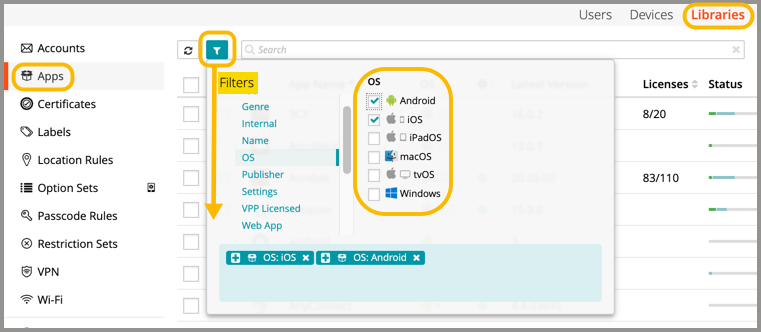
- Select the Libraries tab in top navigation.
- Click the Apps icon.
- Add applicable to the Library.
You can add apps from the applicable app store, upload IPA or APK file, upload DMG or PKG file, Android System apps, or web apps, as needed.

NOTE: To successfully install an iOS app available associated with your organization's Volume Purchase Program (VPP) you must ensure that you have a sufficient number of licenses. Exceeding the license number prevents you from installing a VPP iOS app. You can review the numbers of available licenses for each app in the Apps Library, in the Licenses column. For more details, see View available iOS app licenses.
- To edit an app's settings:
- Select an app from the list.
- In right panel, click Edit Settings.
- Make updates to any available fields.
- Click Save.
iOS and macOS apps only: Until an AppConfig.xml file is added to KACE Cloud for a specific app, the Edit Settings function cannot be enabled. Some apps do not automatically provide a discoverable AppConfig.xml file, but the file may still be available from the developer. In this case, the file needs to be located by an admin and uploaded manually. An admin can also create an AppConfig.xml file and upload it manually for a specific app.
Any updates to an app’s settings will be pushed to all devices where the app has previously been installed.
- To see which devices have a specific app installed:
- Select an app from the list.
- In the right panel, click View Devices.
- Some apps allow you to perform a multi-configuration of their settings. You can determine which apps are available for multi-configuration by locating the gear icon adjacent to the app in the master list. To manage these configurations, select the desired group of settings in the Edit menu, and make your changes, as needed. See Android, iOS, and macOS apps: Understanding managed configurations.
.jpg)
- To remove one or more apps from the library:
- Select an app from the list.
- Click Remove, then Confirm.
This action removes selected apps from the library, but they remain installed on any device where they were previously deployed.